

 When was the last time you memorized a phone number? Thanks to smartphones, you can stuff hundreds of phone numbers and email addresses into your pocket without a second thought. However, these contacts often become disorganized with duplicate entries and mixed personal and business contacts. Moreover, initiating business calls can be cumbersome, requiring constant switching between different apps to search numbers, dial, or match contacts and calls.
Yeastar P-Series Phone System saves you from trouble.
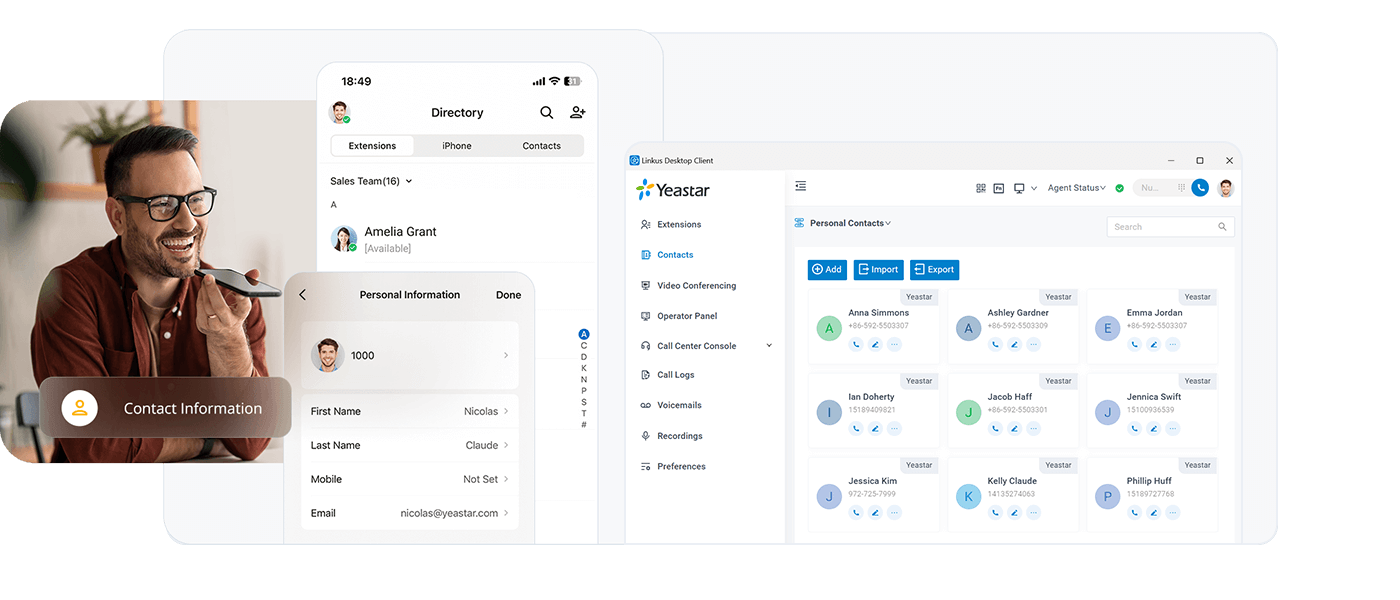
It includes PBX-native contacts management and phonebooks where you can save contacts for personal or company-wide access. These contacts are synced with the phonebooks of IP Phones as well as the Linkus UC Clients. You can add contacts manually, import from a CSV file, or sync contacts from your CRM system and Outlook (Outlook contacts and Outlook shared mailboxes).
Let’s dive into the solution:
- Key features and benefits
- Add, sync, and import contacts from external sources
- Restrict contacts and phonebooks access with user permissions
- Route incoming calls by matching phonebooks
Key Features and Benefits
The Contacts and Phonebook features enable you to easily keep details of your Company and personal contacts, organize shared directories, and benefit from caller ID matching. With these features, you will be able to:
- Organize Company-shared Phonebooks
Create shared phonebooks accessible to all users or only designated members. Through the intuitive web portal, users with permissions can easily create or import contacts, group them into phonebooks, and manage contact details such as Name, Company, Email, Address, and up to 9 numbers. Changes are synced in real-time, ensuring employees always have the latest information.
- Build a Personal Directory for Speed Dial
Apart from the company-shared contacts, individual extensions can create and manage their own exclusive Personal Contacts on Linkus UC Clients. These contacts are synced across all endpoints, including Linkus apps and IP Phones, allowing users to quickly search and connect with customers without switching between applications.
- Instant Visibility into Who is Calling
The system matches incoming calls to contact names so that callers are shown with their name, rather than their phone number. This way you will be able to know instantly who is calling before jumping into the conversation.
- Optimize CDR for Call Tracking
Keep track of all your contact communications with clearer and more intuitive call logs. No matter it’s an outgoing or incoming call, as long as the call is associated with one of your Contacts, you can pull CDR with the «Contact Name» metric to increase the speed and precision of call data analysis. For example, call logs pertinent to a customer can be easily sorted with name – regardless of how many numbers the contact has – and be used to analyze the customer’s behavior, past call history, and preferences.
- LDAP Phonebook on IP Phone Yet Better
Setting up an LDAP phonebook requires expertise and is not easy. Additionally, the LDAP phonebook is solely for the usage of IP phones. The Yeastar native Contacts, when used with IP phone, will display a known caller’s name on the screen; it also unifies contacts for Linkus UC Softphone, providing streamlined contacts management.

Add, Sync, and Import Contacts from External Sources
Import and Export Export Contacts
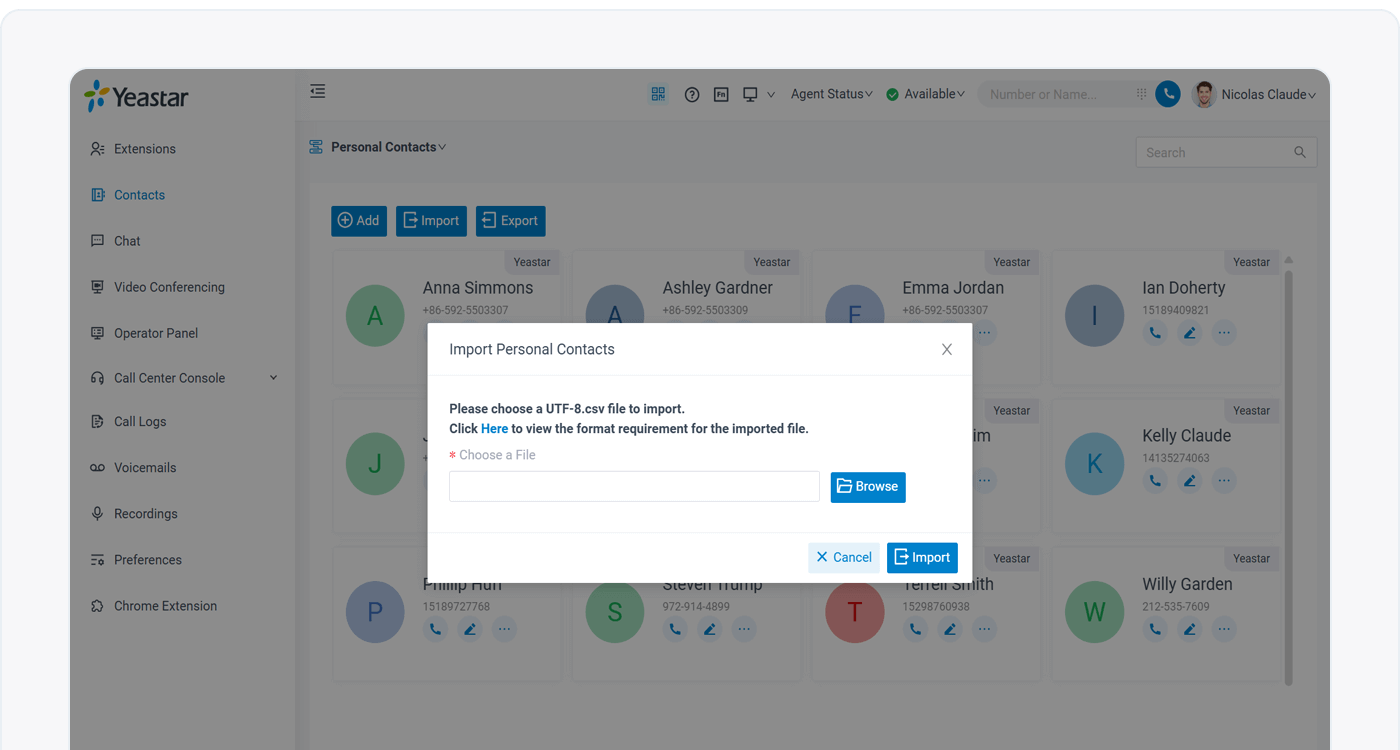
Both PBX admin and extension user with permission can import and export Contacts via PBX web interface. The import and expert support following metrics for each contact entry:
First Νame, Last Νame, Company, Business Number , Business Number 2, Business Fax, Mobile, Mobile 2, Home, Home 2, Home Fax, Zip Code, Street, City, State, Country, Remark, Phonebook.
To import the company phonebook entries into Yeastar P-Series PBX:
- Populate phonebook entries with a CSV file.
- In your web client, go to “Contacts” and then click “Import”.
- Browse and select your saved CSV file to import.
- Click “Import”.
Sync Contacts from CRM & Helpdesk
If your Yeastar P-Series PBX is integrated with supported CRM system, you can configure it so that PBX automatically syncs any contacts from your CRM to the phonebook. This way, you can increase the performance of caller ID matching from your CRM system, by matching all incoming or outgoing calls that are resolved to a contact cached in the PBX phonebook. And all your contacts’ call logs will be synced and logged to CRM automatically.
To import the CRM contact entries into Yeastar P-Series PBX:
- Ensure your PBX is integrated with the CRM
- In your PBX admin portal, go to «.
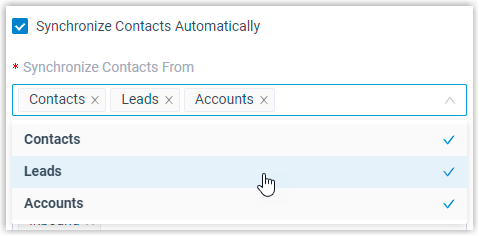
- Enable «Synchronize Contacts Automatically»
- Select the CRM contact scope and the PBX phonebooks for the synchronization
Learn how to sync contacts from CRM with the following configuration guides:
- Set up contact sync with Hubspot CRM
- Set up contact sync with Salesforce CRM
- Set up contact sync with Zoho CRM
- Set up contact sync with Bitrix24 CRM
- Set up contact sync with Odoo CRM
- Set up Contact Sync with Zoho Desk
- Set up Contact Sync with Zendesk
Sync Contact from Microsoft Outlook
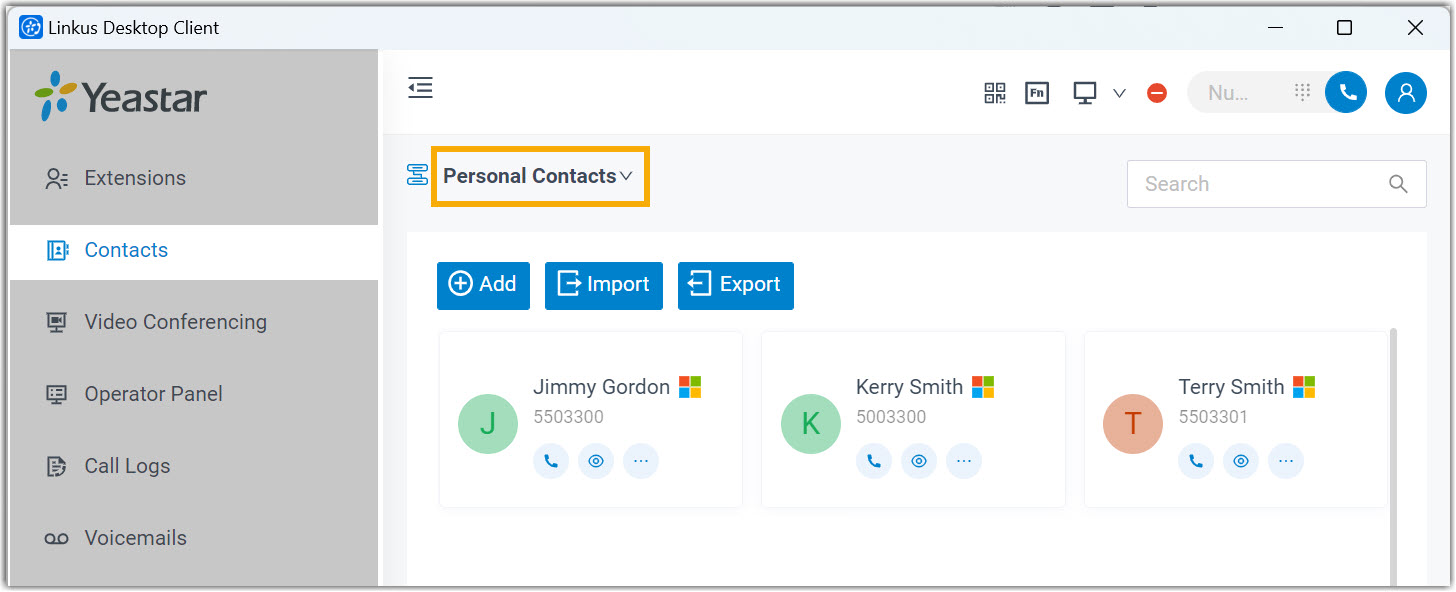
If your Yeastar P-Series PBX is integrated with Microsoft Entra ID (Azure Active Directory), you can sync Outlook contacts (personal Outlook contacts and contacts from Outlook shared mailboxes) to the PBX. After synchronization, the users synced from Microsoft Entra ID to Yeastar PBX can access and make calls to their Outlook contacts through Linkus UC Clients.
Learn how to configure it with the step-by-step guide here.
Restrict Contacts and Phonebooks Access with User Permissions
Keep your sensitive contact information exclusively for those who need to see and manage them. P-Series PBX provides two permission levels for Contacts management:
Restrict by User Role Permission
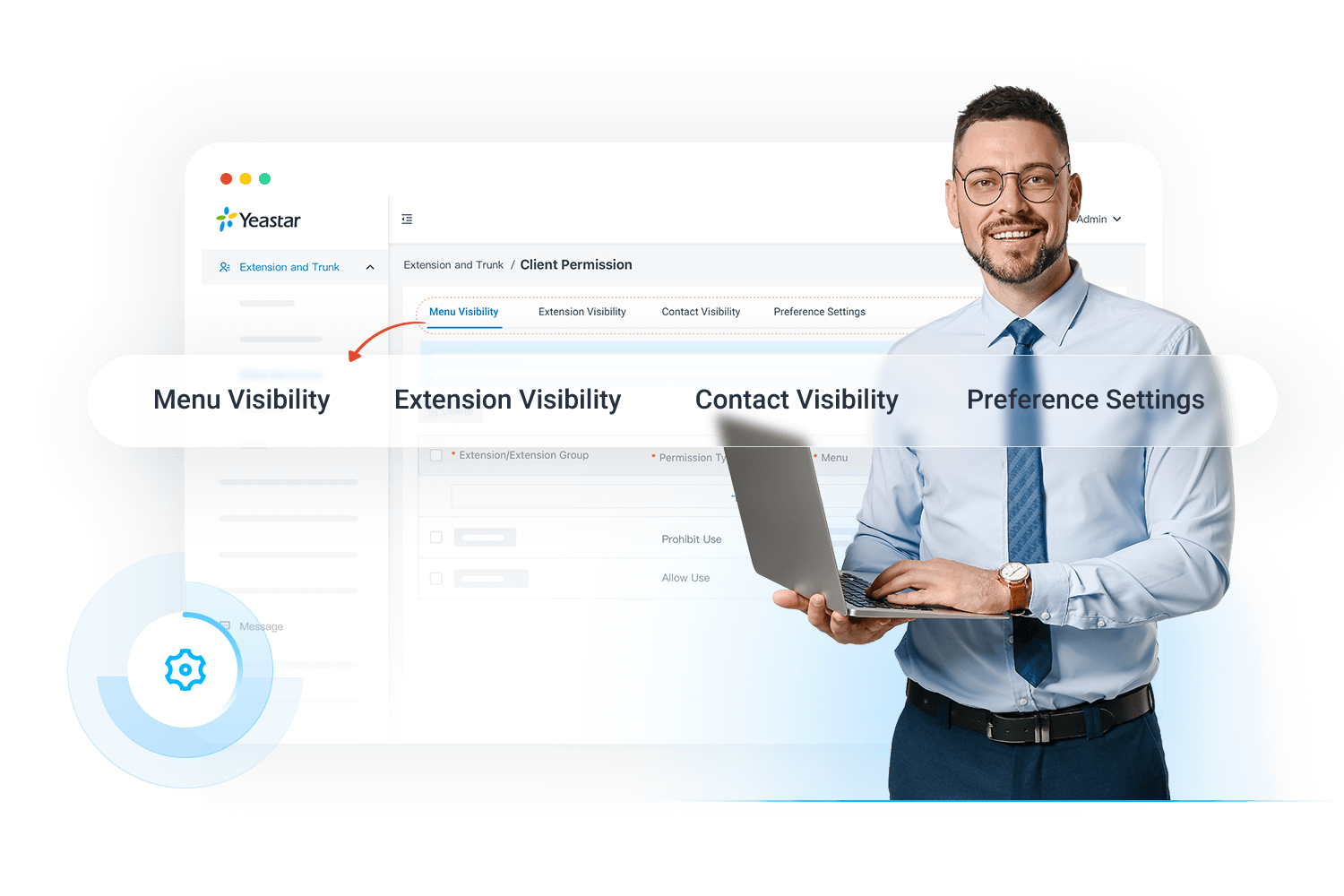
The user role permission is used to manage user access to specific PBX features based on their user roles. Each extension can be assigned with a user role. You can specify which user role can access the following contacts-related features. Users without the following permission will not be able to see company contacts and phonebooks on their PBX and Linkus UC Client.
For instance, you can specify which user roles can access the following contacts-related features. Users without the necessary permission will not be able to view these features.
- Company Contacts
- Phonebooks
Restrict by Linkus UC Client Permission
For more granular control, administrators can also configure Linkus Desktop/Mobile Clients permissions for users. These permissions control which specific extensions, extension groups, or organization departments can view or manage which phonebooks.
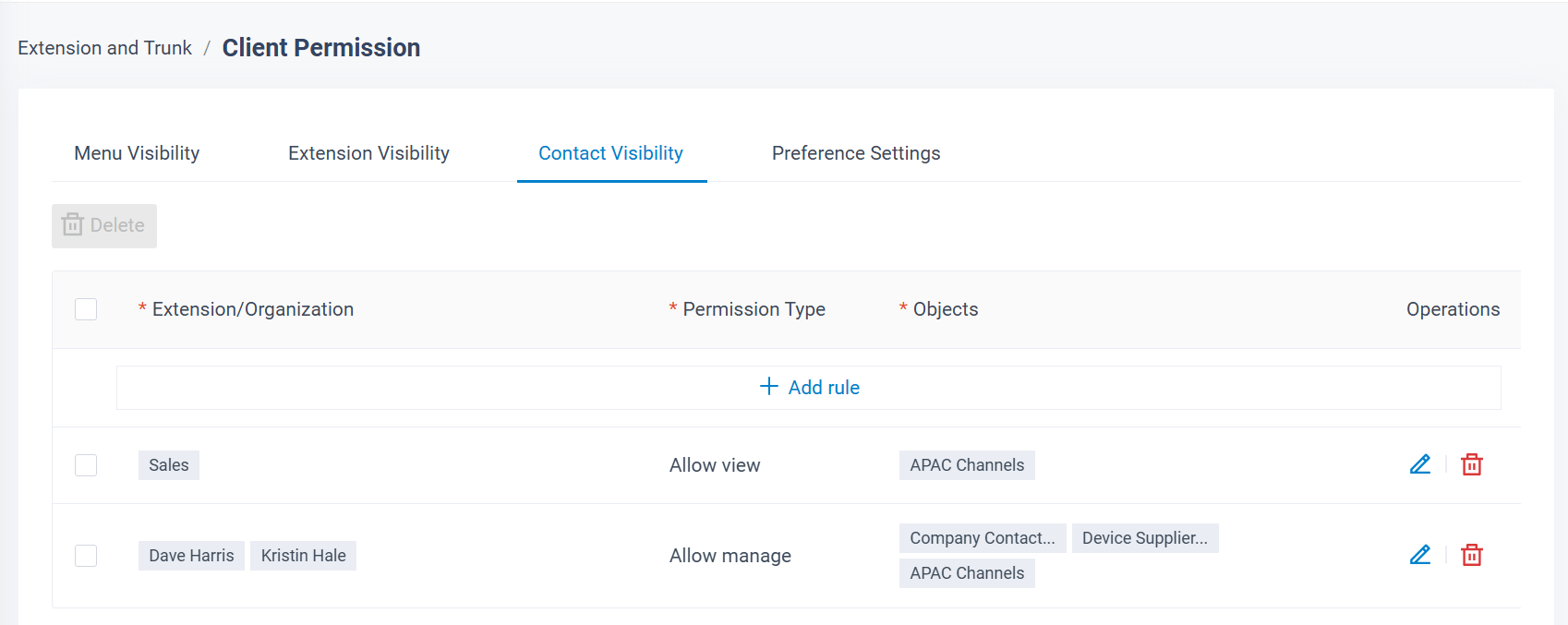
For example, as shown in the image above, you can set permission rules to ensure that only the Sales department can view the APAC Channel phonebook on their Linkus Desktop/Mobile Cliient, and only department managers Dave Harries & Kristin Hale can manage (add, edit, remove contacts/phonebook) the phonebooks.
You can check the permission details and configuration guide for more details.
Route Incoming Calls by Matching Phonebooks
Streamline your customer service by directing your customer calls directly to the responsible individual or department. With Yeastar’s P-Series Phone System, you can set up inbound routes to efficiently distribute calls from contacts of different phonebooks to different destinations.
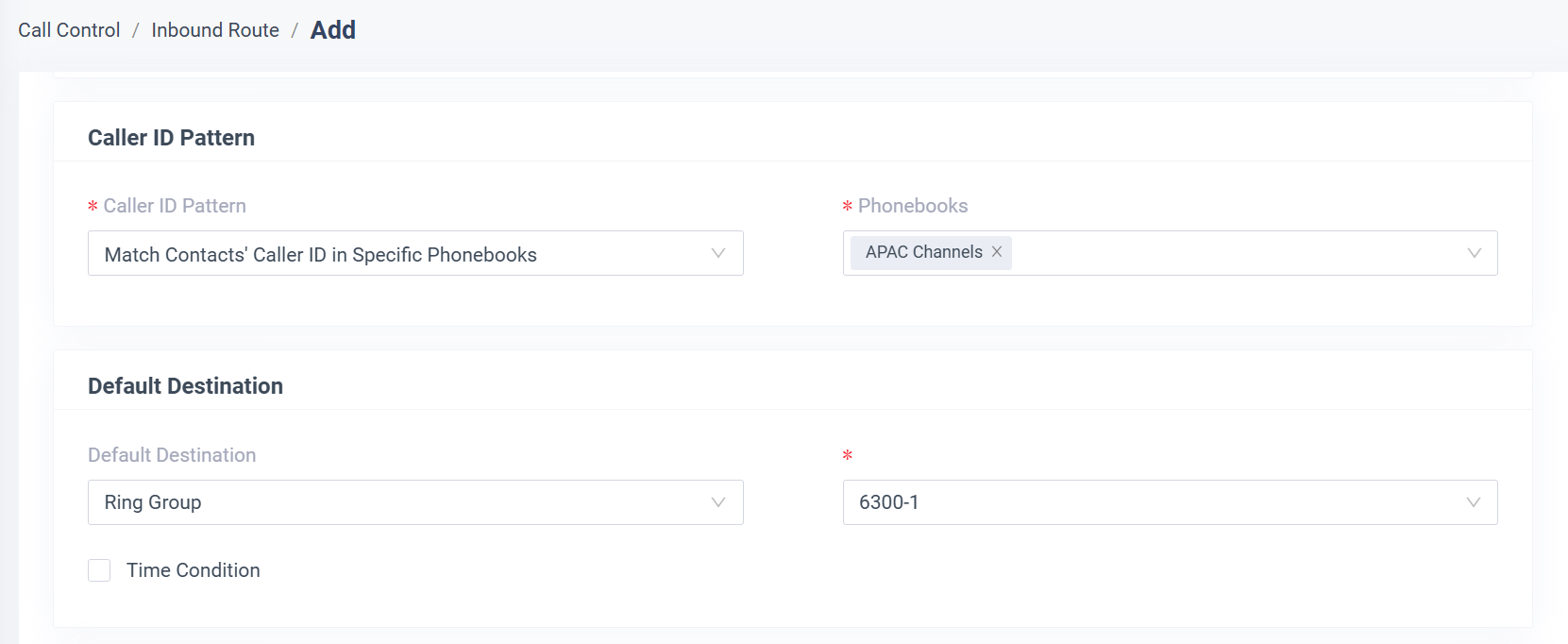
An inbound call will trigger PBX contacts lookup and when it’s matched with a PBX phonebook configured in the inbound route, it will be routed to the designated destination.
For instance, if configuring an inbound route as shown in the image below, all incoming calls from contacts in the «APAC Channels» phonebook will be routed directly to Ring Group «6300-1».
Experience the Feature Now
Login to your Yeastar P-Series Phone System or Linkus UC Clients to experience now.
Not having a Yeastar PBX System yet? Start for free with Yeastar Cloud PBX 30-day free trial. No credit card required. No long-term commitment. You can make full use of the free trial to experience how the feature work in Yeastar PBX System and access Yeastar full Unified Communications Solution in no time!